Managing storage on an iPhone can be a struggle, especially as high-resolution media and sophisticated applications consume more data and storage than low-resolution files. When an iPhone reaches its storage limit, performance often slows down, and users find themselves unable to download essential updates or store new files.
A few targeted adjustments to your settings can reclaim gigabytes of space. To find the most effective methods for clearing digital clutter, TechCabal spoke with Desmond Francis, a phone expert and salesman who runs Desontechhub, a gadget device store in Computer Village, Lagos. Francis shared that the process for clearing storage is universal across the ecosystem, noting, “It’s the same process for all the iPhones.”
8 ways to free up your iPhone storage
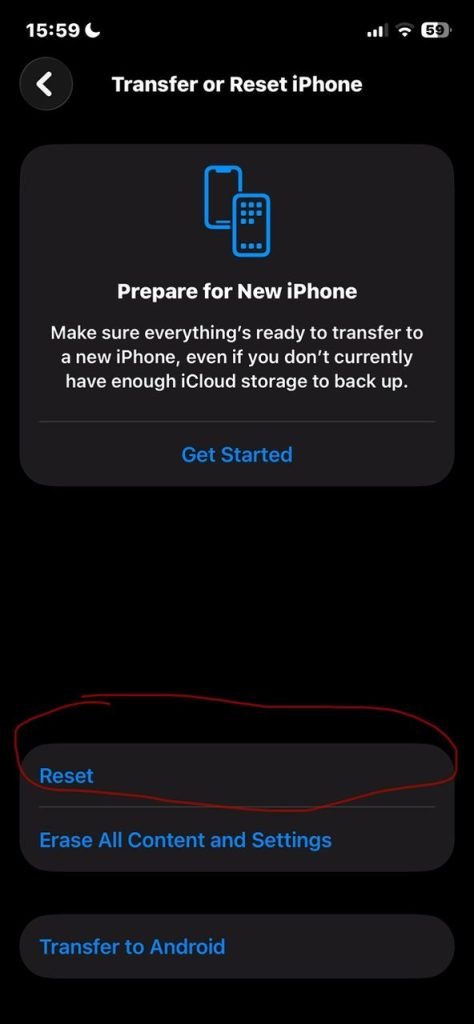
1. Reset all settings
One of the most immediate ways to refresh a device is to reset the system configurations. Unlike a factory reset, this does not wipe your personal data like photos or contacts, but it can clear it.
“When you reset all settings, all the things will not be deleted. Is boy, if you reset, it will actually reset some unnecessary things,” Francis said.
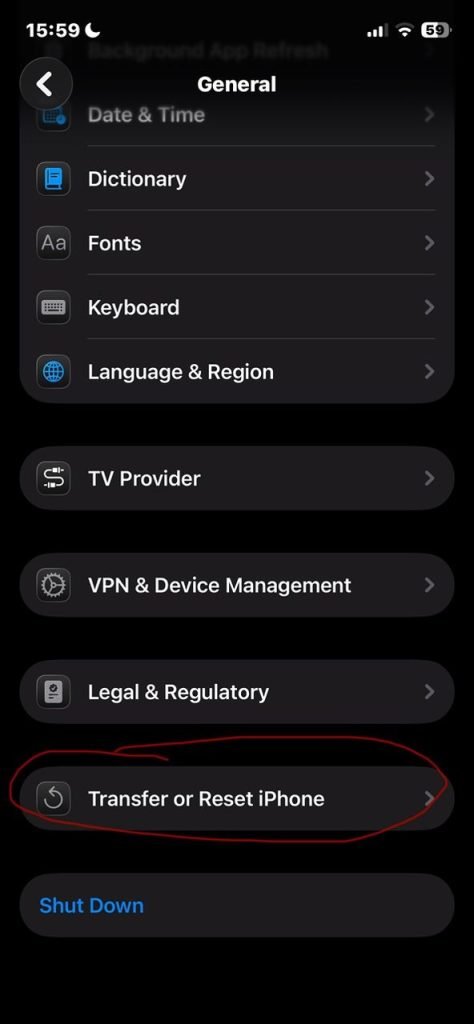
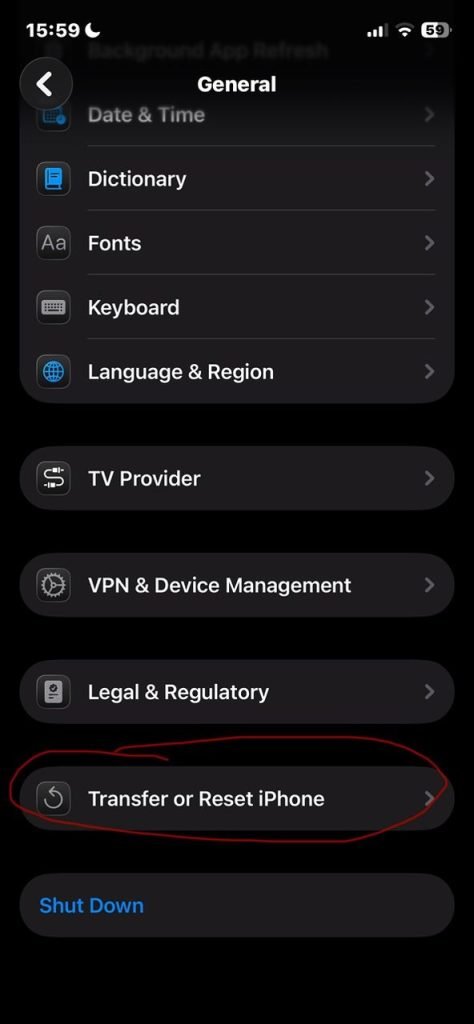
Tip: Go to Settings > General > Transfer or Reset iPhone > Reset > Reset All Settings.
2. Delete old iMessages
Text-based messages consume very little space, but years of attachments, stickers, and shared media within the iMessage service can result in massive storage consumption.
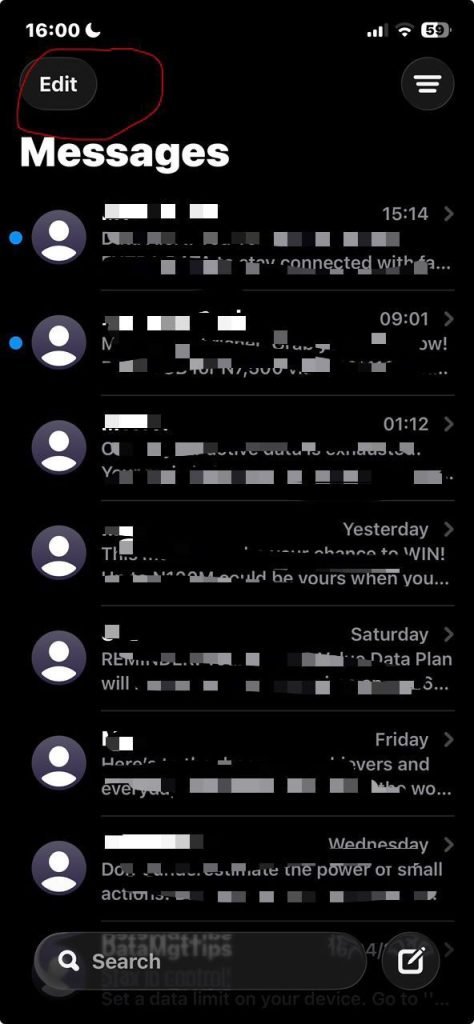
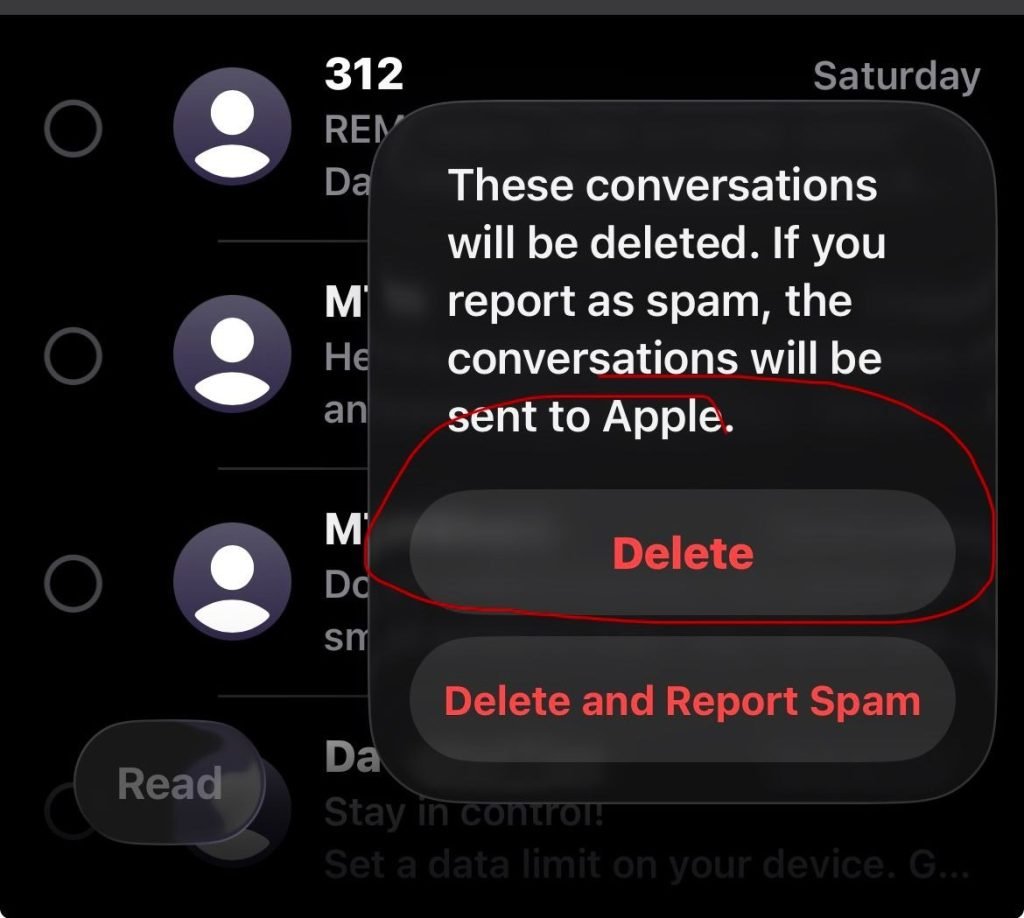
Francis explained that all the iMessages that a user has received since the first day of use till date, “occupy a lot of space, and you might not need those messages. So you have to delete everything.”
Tip: Open the Messages app, tap Edit, and choose Select Messages to remove large threads.
3. Automate message deletion
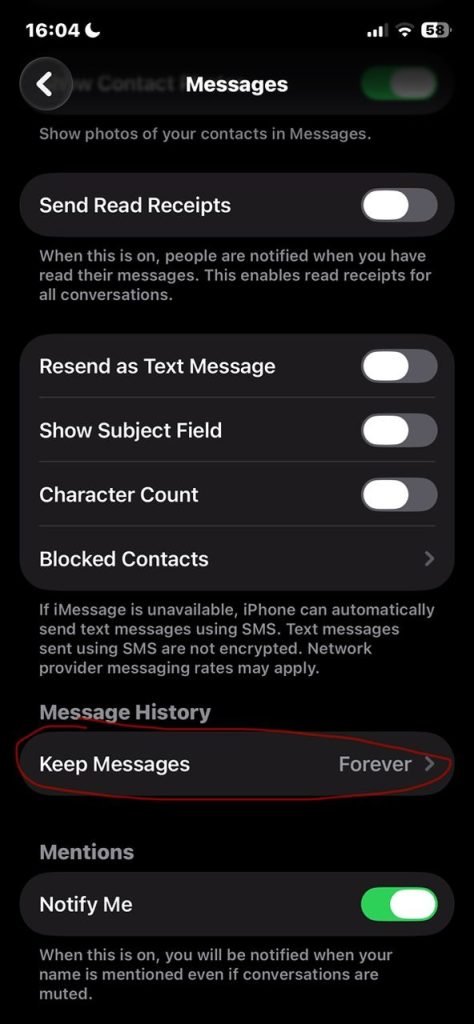
If you do not want to manually clear your iMessage history, you can set your iPhone to handle it automatically after a set period.
“You can go to settings, to turn on ‘keep message for just 30 days’, or ‘less than 30 days’, so as the message comes in, they can always be deleted,” Francis says.
Tip: Go to Settings > Messages > Keep Messages and change the duration from Forever to 30 Days.

4. Remove unnecessary applications
We often download apps for one-time use and forget they exist. These applications continue to occupy space and may even run background processes.
Francis advises users to “delete unimportant and unnecessary applications on the iPhone.”
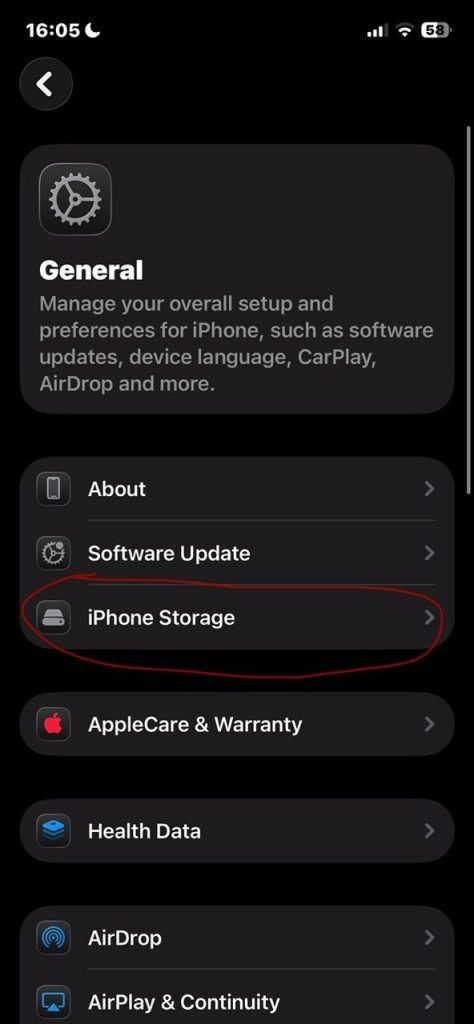
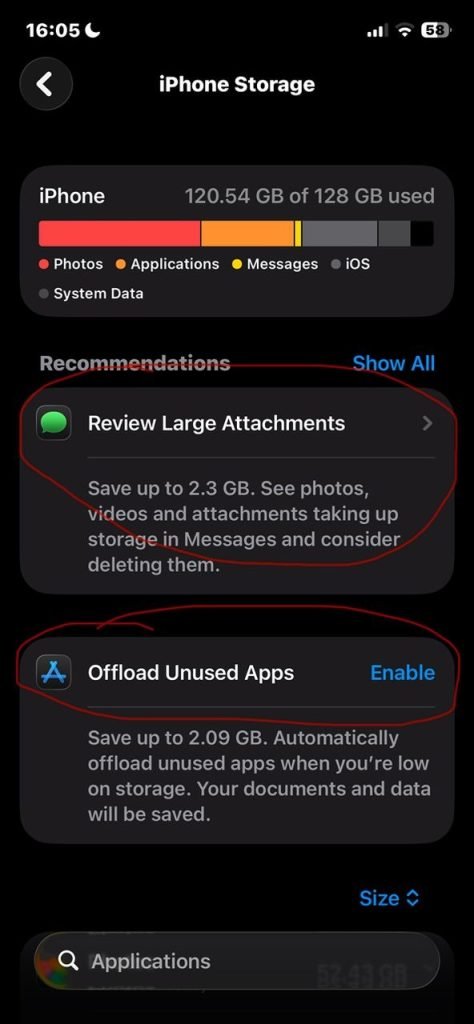
Tip: Go to Settings > General > iPhone Storage to see which apps occupy the most space and delete those you no longer use.
5. Clear the Safari cache
The Safari mobile browser stores data from every website you visit to speed up loading times. However, over time, this cache, which stores copies of the website data, becomes a burden on your internal storage.
“You have to clear Safari caches,” Francis noted.
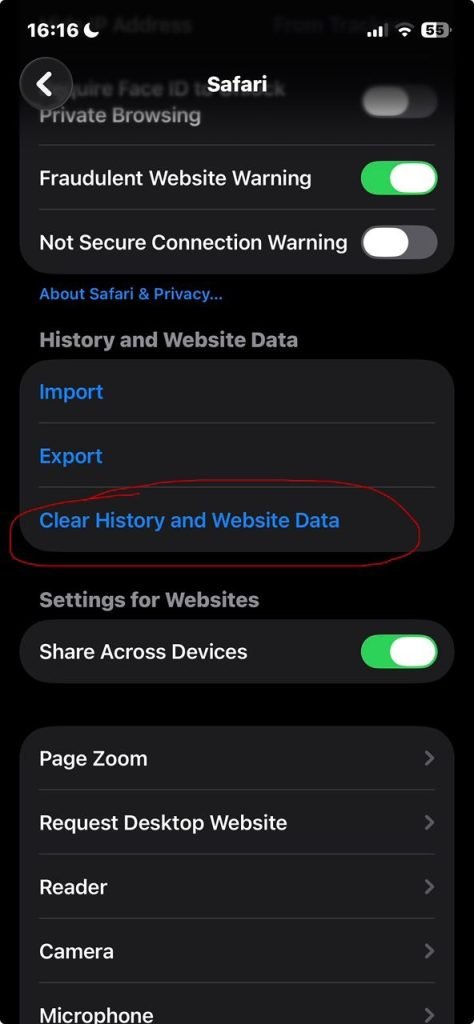
Tip: Go to Settings > Apps> Safari > Clear History and Website Data.
This applies to any other browser you use on your iPhone. For instance, if you use Google Chrome, go to Settings > Apps> Safari > Clear History and Website Data.
6. Manage WhatsApp media and group chats
WhatsApp, an app primarily for communication, has default settings that often lead to storage crises due to the sheer volume of shared media in group conversations.
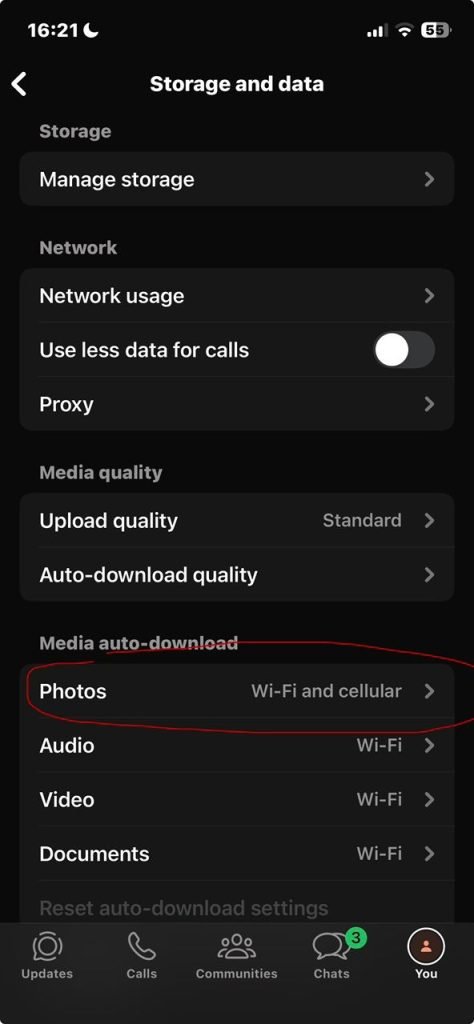
“Your image pictures and videos on unnecessary groups or on WhatsApp groups, you have to mute them. You also have to clear the chats on WhatsApp groups that have heavy photos or videos on them. You turn [the auto-download feature] off,” Francis said.
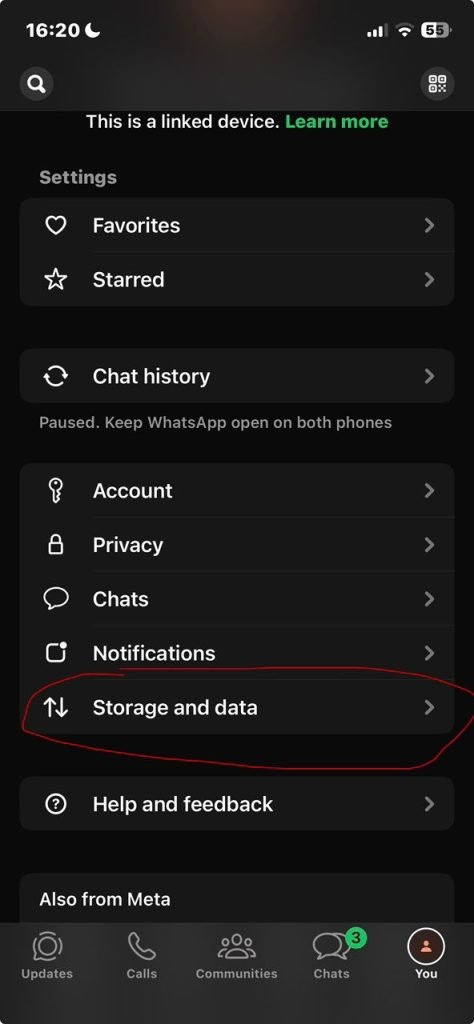
Tip: In WhatsApp, go to Settings > Storage and Data > Media Auto-Download and set all options to ‘Never’.

7. Delete duplicated photos and videos
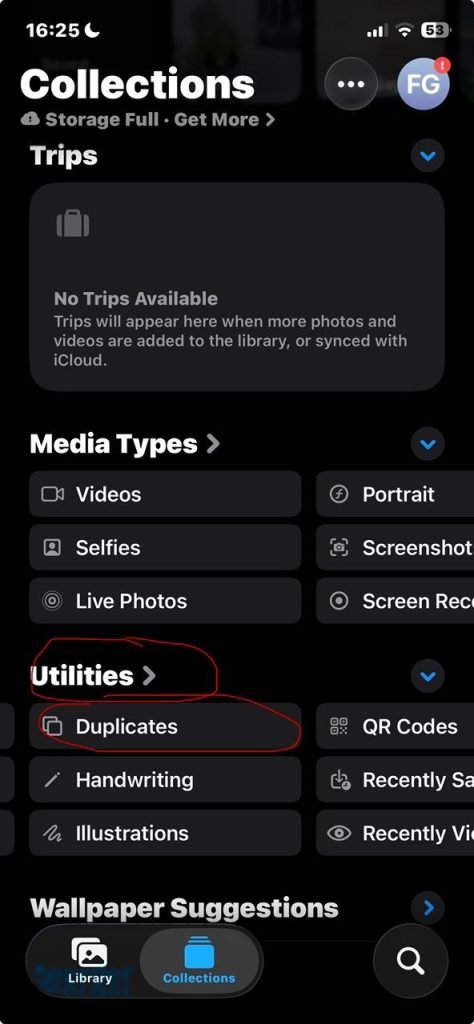
The photo library on an iPhone often fills up with nearly identical images, especially from multiple photo takes.
Francis suggested that to free up space, users should “delete some duplicated videos and photos. Get rid of those things.”
Tip: In the Photos app, go to ‘Collections’ > scroll down to ‘Utilities’> select ‘Duplicates’ to merge or delete identical media.

8. Clean up voice notes and mobile services
Voice notes are frequently overlooked as a source of storage exhaustion, despite being heavy audio files.
“Of course, unnecessary voice notes have to be deleted,” Francis said.
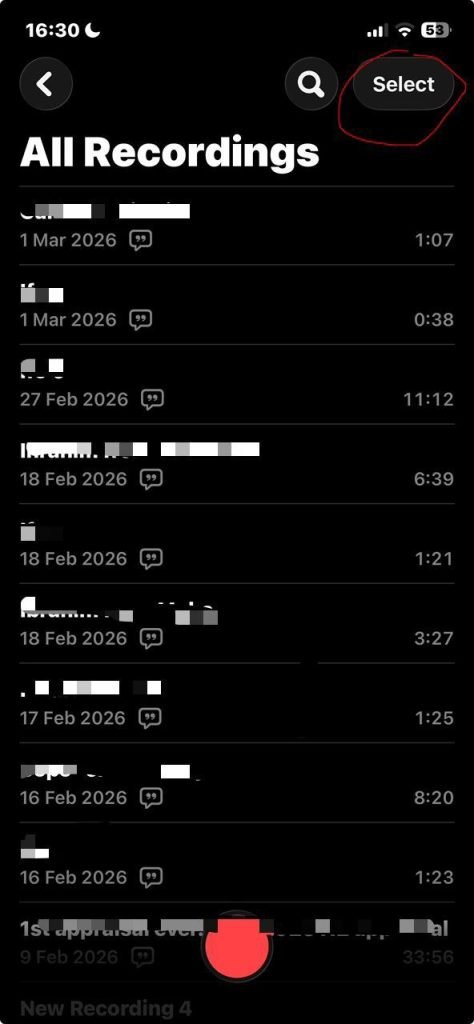
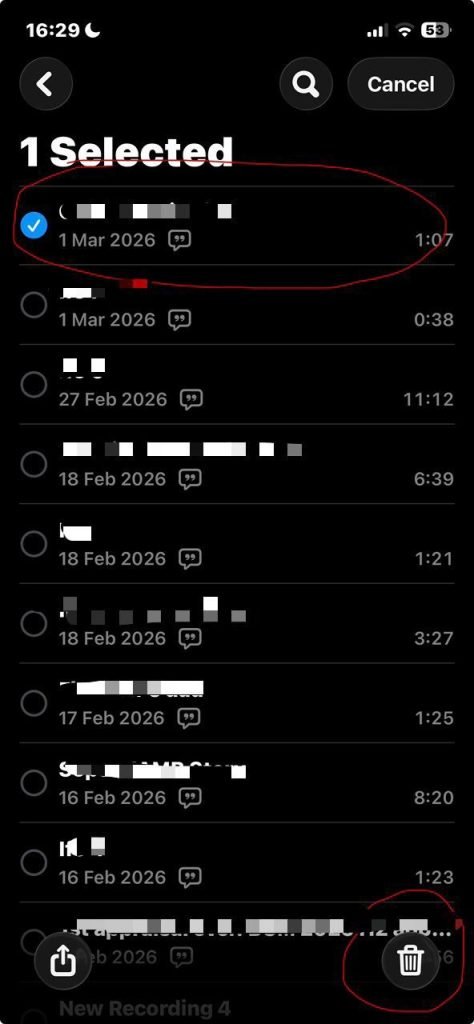
Tip: Go to the Voice Memos App> Select “All recordings”> select the items you want to delete.
Additionally, certain background services can be adjusted to prevent further accumulation of audio storage.